
The Visu controls panel contains the parameters created specifically for the current visual. It is usually the fastest and safest place to make variations because it changes the system without rewriting its code.
Read the available controls#
A visu can include sliders, numbers, colors, toggles, menus, text fields, action buttons, and asset fields. Controls may be grouped by purpose, such as Typography, Motion, Colors, Composition, Interaction, or Assets.
The panel begins with the aspect ratio and then shows the control groups created for that visu. Select a group name to expand or collapse it. The expanded group can combine color swatches, text or number fields, menus, sliders, toggles, buttons, and asset inputs; the value shown in each row is the current live value.
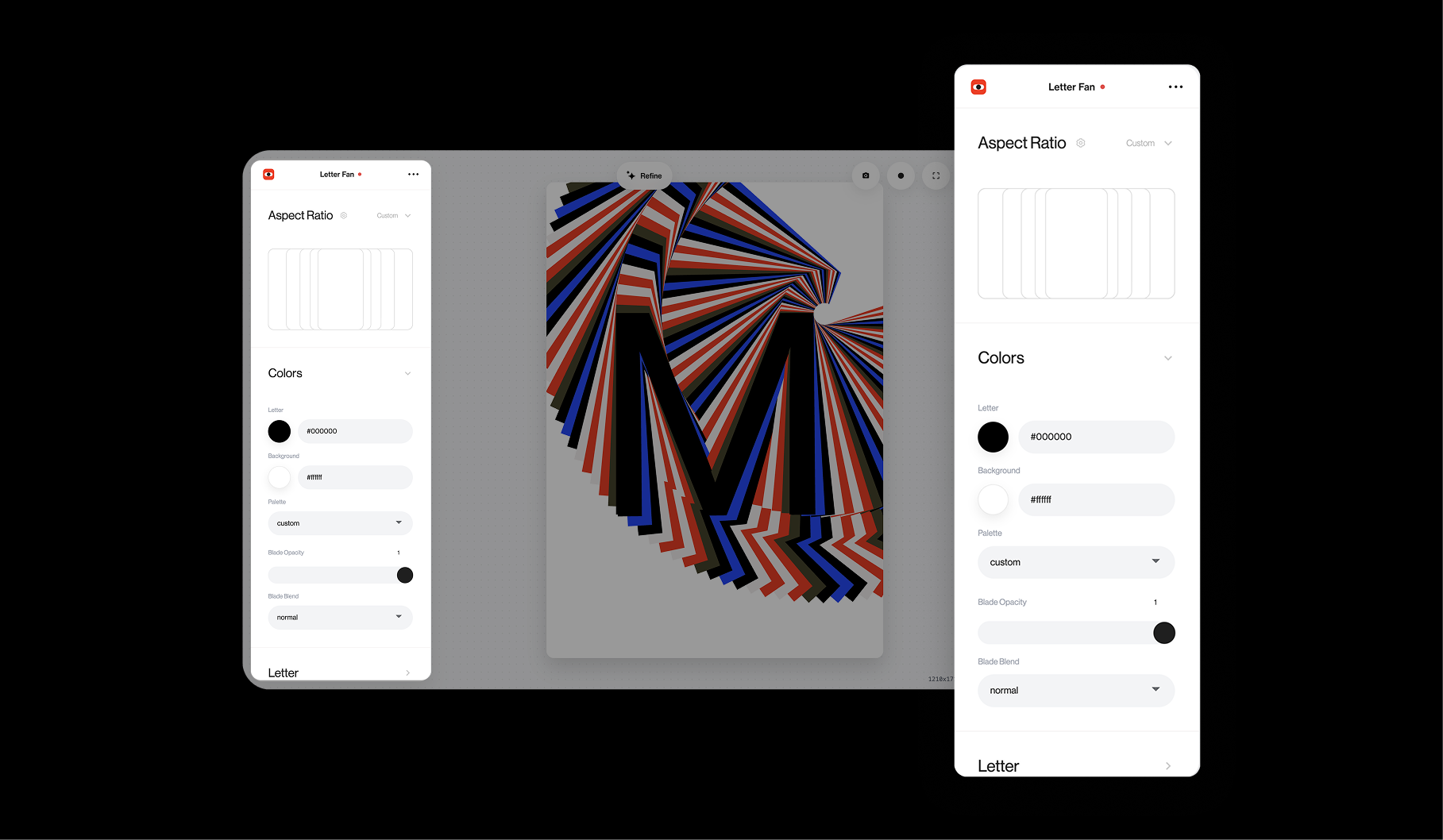
Move one control at a time when learning a new visu. Return it to its starting value before testing the next one. This makes it easier to understand what affects content, motion, appearance, interaction, or a one-time action.
Use controls before AI#
If the decision already exists as a control, change it there. Use an AI update only when the required behavior, value, range, control type, or asset slot is missing.
For a reusable tool, the most useful controls usually include the content that changes, the parameters that define its visual identity, and one or two expressive motion decisions. Exposing every internal value makes the tool slower to understand.
Organize the panel#
Use short labels and groups that make sense to the person operating the visu. Put high-frequency controls near the top, hide internal or duplicate values, and keep ranges safe. A live controller should not be able to send the visual into an invisible or unusably heavy state with one accidental movement.
Text and asset fields are especially important for reusable brand, campaign, and social systems. They let another person change content without rebuilding the visu.
Resolve a control that does not respond#
Pause the Timeline and disconnect any MIDI or gamepad mapping that targets the same control. A live source can override the value you are trying to change manually.
If the control still has no visible effect, return it to its default, reload the saved version, and test again. A structural AI update may have left a control disconnected from the underlying visual; in that case, request a focused repair rather than recreating the entire project.