
The Editor is where a visu becomes a usable creative tool. It keeps the live visual, its controls, assets, overlays, effects, animation, versions, and output settings in one workspace.
Understand the workspace#
The stage shows the running result. The controls panel exposes the parameters built into the visu. Around them, the Editor provides format and background settings, overlays, global effects, Timeline tools, project actions, versions, and export controls. Some tools depend on the current visu, plan, browser, or platform.
The main canvas sits in the center and follows the selected aspect ratio. It is the area that becomes the final capture or export. The dotted workspace, side panel, tool buttons, and other Editor controls stay outside the output.
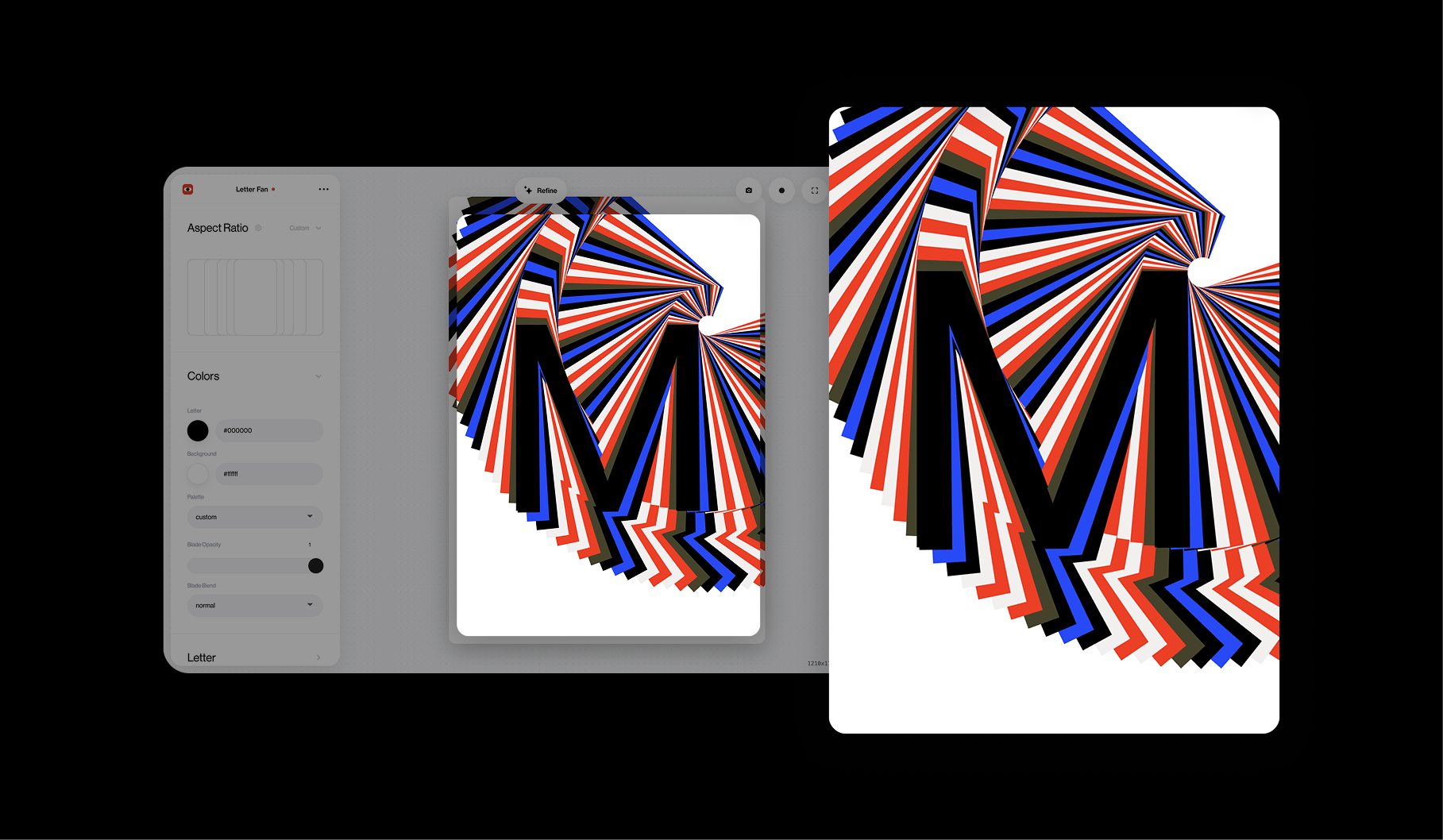
Begin by fitting the complete stage in view and letting the visu run. Test the pointer and the existing controls before opening more panels. This gives you a clean baseline for every later decision.
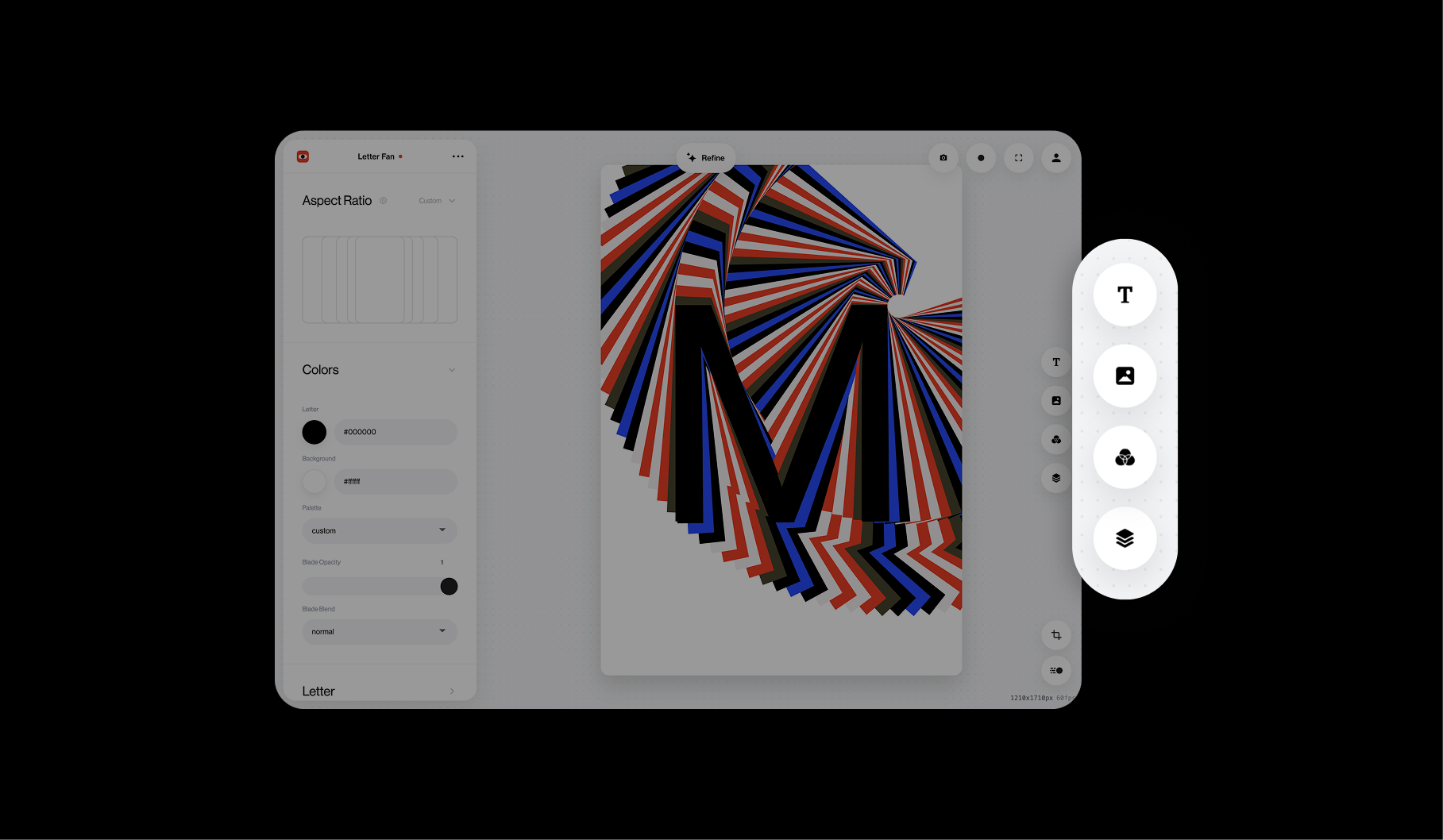
The compact toolbar beside the canvas keeps composition tools together. Use Text to add a text overlay, Image / Video to place media above the visu, Global Effects to treat the complete composition, and Layers to inspect or change the stacking order.
Know what you are editing#
A change can live in different parts of the project:
- Use a visu control for a value the system already exposes.
- Use an asset field to replace media inside the visual system.
- Use an overlay for independent text, images, or video above the visu.
- Use a global effect to treat the combined stage.
- Use the Timeline to animate an exposed control.
- Use an AI update to change the underlying code, behavior, or control structure.
Choosing the right layer keeps the project easier to revise and reuse.
Save as you work#
Use undo for immediate mistakes, versions for meaningful checkpoints, My Visus for account storage, and a downloaded .visu for a portable backup. Save before an AI update, major ratio change, asset replacement, or Timeline rebuild.
Projector Mode can remove editing distractions for display or performance when available. Test the exact visu, screen, browser or app, and controller before a live event.